Are digital planners on iPad failing to stick? Does the thought of PDF imports, broken links, or sluggish Apple Pencil feel overwhelming? This guide resolves those pain points quickly. It focuses exclusively on digital planners optimized for iPad + GoodNotes, delivering a technical, practical, and tactical path from first install to daily use.
Key takeaways: what to know in one minute
- Setup is fast when file specs match GoodNotes: use 2048–2732 px on the long edge for single-page planners and compress to keep files under 50 MB for daily use.
- Beginners benefit from pre-made iPad templates: choose dated vs undated based on planning cadence; students usually prefer weekly/daily templates with subject dividers.
- Organization relies on consistent notebooks and hyperlinks: use a single notebook per academic year or project and add internal links for 1-tap navigation.
- Customization keeps performance smooth: limit sticker-heavy pages, use PNGs at 72–150 DPI, and prefer GoodNotes-native shapes instead of large embedded images.
- Backup and sync matter: enable iCloud sync and export a weekly backup to Files or Dropbox to avoid duplicate or corrupted copies.
GoodNotes digital planner setup step by step
Start with a planner PDF sized for iPad screens: common choices are 2048×2732 (portrait) or 2732×2048 (landscape). PDFs optimized for GoodNotes should have:
- Single-page or small multi-page batches (reduce load time when scrolling).
- Embedded fonts or flattened text to avoid font substitution.
- Link targets in-page or to specific PDF page numbers for internal navigation.
When exporting from design tools (Affinity, Illustrator, Figma): export to PDF/X-1a when possible and check file size. Aim for under 50 MB for full planners and under 5–10 MB for daily or weekly packs.
Import into GoodNotes and set the right template
- Open GoodNotes and tap the + button > Import.
- Select the PDF from Files or cloud storage.
- When prompted, choose ‘Import as document’ (not image).
- If the PDF has a cover and index, duplicate the document and test navigation.
If the planner includes alternate page sizes, add a page template set via the top-right ••• menu > Template > Add.
- In GoodNotes Settings > General, enable Left-Handed mode if needed.
- In Settings > Apple Pencil, set preferred pressure and halt to reduce latency in older iPad models.
- Use GoodNotes’ shape recognition for clean geometry and lower file complexity.
Create a navigation index for fast access
- Make a Table of Contents page (linked) for quick jumps.
- Use internal links (created in the source PDF or with GoodNotes hyperlink annotations) to jump to monthly/weekly sections.
- Add a recurring ‘Home’ top-right link on each page to return to the index.
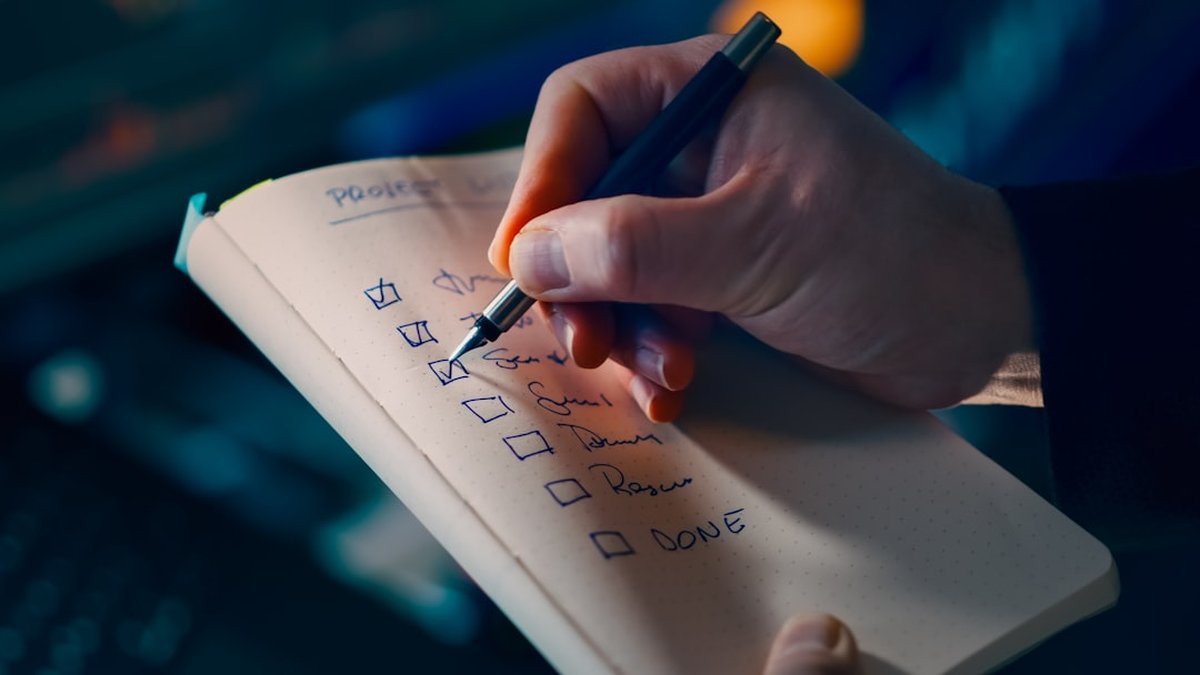
IPad planner templates for beginners: what templates to start with
Basic templates every beginner should try
- Daily page with schedule (hour grid), top priorities, and quick notes.
- Weekly spread showing Monday–Sunday with a tasks column.
- Monthly overview with habit tracker and goals.
Beginners should begin with undated templates to practice layout and then move to dated templates once the cadence is established.
Student-focused templates for iPad + GoodNotes
Students benefit from templates tailored to courses and deadlines: lecture notes (two-column), assignment tracker, and exam revision timelines. The recommended pack includes:
- Class notes template with subject header and page tags.
- Weekly assignment board with due-date badges.
- Semester overview with grading and study blocks.
How to pick a template pack
- Choose a pack that lists GoodNotes-ready in the description.
- Check sample pages before purchase; if the seller provides a sample PDF, import and test on the device.
- Prefer sellers that specify page pixel dimensions and file size.
Simple guide to GoodNotes organization for daily flow
Establish a notebook structure
- Use one notebook per high-level area: e.g., “Work 2026”, “Personal”, “Courses, Spring 2026.”
- Avoid a single mega-notebook with hundreds of pages; splitting reduces load time and search costs.
Use folders and subfolders strategically
- Put daily planners in a “Planners” folder and keep templates in a “Templates” notebook set.
- Use date-based folders for archives (e.g., 2026 > Jan) to speed up cloud sync.
Tagging and search best practices
- Add consistent tags (e.g., #projectX, #lecture) on the cover page for quick search.
- Use handwriting recognition: write clearly and run a search to tag notes automatically.
Backups and version control
- Enable iCloud sync in GoodNotes: Settings > Backup & Sync.
- Export a weekly PDF backup to Files or Dropbox and keep three recent backups.
Best digital planners for iPad students: selection matrix
Below is a compact comparison of leading planners that are optimized for iPad + GoodNotes and suitable for students. The table highlights file size, best use case, and GoodNotes-specific features.
| Planner |
Best for |
GoodNotes features |
Typical file size |
| Academic Pro Pack |
Students with many courses |
Internal links, tabs, searchable headers |
8–18 MB |
| Minimal daily planner |
Users who want speed |
Single-page, low-res stickers, fast load |
2–6 MB |
| All-in-one life planner |
Power users & creatives |
Stickers, hyperlinked tabs, dashboards |
30–70 MB |
How to customize GoodNotes planner pages without slowing performance
Optimize images and stickers
- Use PNG or WebP with 72–150 DPI for stickers and icons.
- Resize images to the exact display size before importing to avoid scaling cost.
Use native GoodNotes objects where possible
- Shapes, text boxes, and handwriting are lighter than large embedded raster graphics.
- Avoid embedding long high-resolution background images on every page.
Create reusable template pages
- Build a template set: daily, weekly, monthly.
- Save the templates inside GoodNotes to add pages quickly rather than importing full PDFs.
Color, layers, and pen usage
- Limit the number of heavily layered vector objects per page.
- Use fewer brush types; complex brushes increase rendering work.
Technical checks to ensure planners are truly optimized for iPad + GoodNotes
File metrics to verify before purchase or deployment
- Page size in pixels (prefer 2048–2732 range).
- Total file size (optimal under 50 MB).
- Link integrity (test internal anchors).
- Open the planner and test Apple Pencil latency: write a paragraph and scroll.
- Duplicate a heavy page and note any slowdowns; if present, reduce image DPI or split the planner.
Compatibility checklist
- Confirm GoodNotes compatibility in product descriptions or seller notes.
- Check for explicit mention of ‘GoodNotes-ready’ or a sample file to import.
Step-by-step workflow for daily planning
Daily planning flow for GoodNotes on iPad
✍️
Step 1 → Open daily template & set top 3 priorities
🗂️
Step 2 → Link tasks to weekly board (internal links)
⏱️
Step 3 → Block focus time on calendar & add reminders
✅
✅ Success: Review before sleep & export weekly backup
Advantages, risks and common errors
Benefits / when to apply ✅
- Use GoodNotes-optimized planners when portability, handwriting, and hyperlink navigation are essential.
- Ideal for students balancing multiple courses and professionals who prefer a paper-like interface.
Errors to avoid / risks ⚠️
- Buying planners without sample pages: risk of wrong page size or heavy files.
- Embedding massive high-resolution backgrounds across all pages: leads to lag and sync failures.
- Not backing up: risk of losing annotated notes or creating duplicate documents during sync.
Frequently asked questions
What file size is best for GoodNotes planners?
Aim for under 50 MB for complete planners and 2–15 MB for daily/weekly packs to keep GoodNotes responsive.
How to import a planner into GoodNotes without losing links?
Import the original PDF (not images) via GoodNotes + Import and verify internal link targets; use a sample before full import.
Can GoodNotes handle hyperlinks to external websites?
Yes. Hyperlinks to external URLs open in the iPad browser when tapped from GoodNotes but test links after import.
Do templates work on all iPad models?
Most templates work, but older iPad models may show lag with very large files; test a sample file on the specific device.
How to make planner pages searchable by handwriting?
Write clearly, then run GoodNotes’ handwriting recognition (Search). For best results, use dark ink and consistent letterforms.
Should students use dated or undated planners?
Students who prefer flexibility should choose undated early in the term; dated planners help maintain routine during heavy coursework.
Conclusion
Good digital planners optimized for iPad + GoodNotes combine proper file preparation, smart organization, and targeted customization. When the technical checks are applied and workflows simplified, GoodNotes becomes a high-performance digital planning environment for students and professionals alike.
Your next steps:
- Download a free sample GoodNotes-ready planner and import it to test performance and navigation.
- Configure one notebook structure (e.g., “Courses 2026”) and a weekly backup routine to Files or Dropbox.
- Replace large background images with lightweight templates and test Apple Pencil responsiveness.